The Short Version
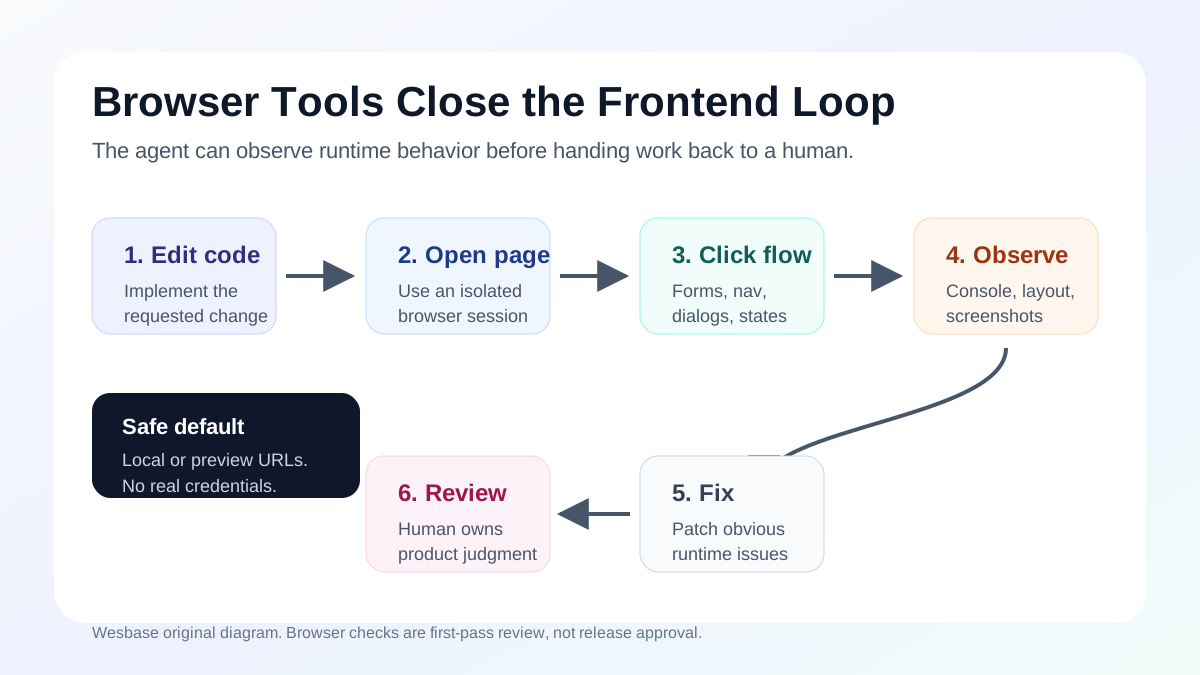
GitHub Copilot browser tools matter because they move coding agents from “write code” toward a tighter frontend loop: edit the page, open it in a real browser, click through the flow, read console output, capture screenshots, and bring the findings back into the code change.
That is a practical shift. Until now, asking an agent to change a form, navigation menu, or landing page usually ended with a human opening the browser anyway. You still had to click the buttons, check the mobile layout, copy console errors, and explain what broke.
Browser tools do not mean frontend testing is solved. A better mental model is “a junior QA assistant with a browser.” The agent can check bounded, observable flows. It should not replace Playwright or Cypress, human product judgment, or security policy around logged-in pages and internal systems.
What Changed
GitHub announced on July 1, 2026 that browser tools for GitHub Copilot in VS Code are generally available. VS Code 1.127 release notes also list browser tools for agents as generally available, saying agents can open pages, take screenshots, click through pages, read console output, and verify their own work.
The VS Code browser-agent testing guide gives the useful detail. Agents can navigate pages, read page content, capture screenshots, click, hover, drag, type, handle dialogs, and run custom Playwright code. The same guide says pages opened by the agent use private, in-memory sessions by default, separate from your other browser tabs and their cookies or storage.
That separation matters. Once a coding agent has a browser, the important question is not only “can it click the right button?” It is also “what can it see, what can it reach, and is it carrying my logged-in session?” VS Code’s distinction between agent-opened pages and manually shared pages is the right warning sign.
Why Browser Verification Was the Missing Piece
AI coding tools have been strongest in the text world: reading files, editing code, explaining errors, and generating tests. Web apps break in a different place. They break at runtime.
A component can look reasonable in a diff and still fail because of hydration, CSS stacking, scroll containers, viewport breakpoints, or missing state. A form can look valid in code and still fail to show the right message. A navigation menu can work on desktop and cover the content on mobile.
Those failures live in the combination of code, browser, user action, and changing state. If an agent can only read files, it has to guess. If it can open the page and interact with it, some guesses become observations.
That is the real value. A developer can describe a flow, let the agent make the change, ask the agent to run a basic browser check, and get screenshots or console errors back before human review. The human still decides whether the interaction is right.
Where Browser Tools Help
The best tasks have clear boundaries, visible results, and failures that are easy to describe.
Form validation is a good example. Ask the agent to enter an invalid email, submit the form, check whether the error appears, then enter valid data and confirm the success state. The agent does not need to understand the business strategy. It just needs to execute the steps and report what happened.
Responsive layout checks are also a good fit. Ask for screenshots at desktop and mobile widths. Have the agent look for overlapping headings, hidden buttons, clipped images, and menus that cover the page.
Console errors, empty states, loading states, dialogs, simple multi-step flows, and basic accessibility checks are all reasonable starting points. These are small issues that teams often miss, and they are exactly the kind of feedback a browser-capable agent can collect quickly.
A useful prompt is specific:
Open the local app in the browser. Test the signup form with one invalid email, one empty password, and one valid submission. Report console errors, visible validation messages, and any layout overlap on desktop and mobile width. Do not use real credentials.The important part is not the wording. It is the boundary: page, flow, inputs, observations, and safety rule.
Where You Should Not Use It Blindly
The first category is high-risk action: payments, production admin panels, data deletion, permission changes, cloud resources, and real customer accounts. A browser-capable agent should not become a free pass to click through sensitive systems.
The second category is product judgment. A button can work and still be confusing. A page can have no console errors and still fail to persuade. A screenshot can show no overlap while the information architecture remains weak. That is still human work.
The third category is long-term regression coverage. Browser tools are useful for exploration and debugging. If a check matters every week, turn it into a real test. Playwright, Cypress, or your existing testing stack is still the right place for CI-grade coverage.
The clean rule is this: browser tools help you move from “I suspect something is wrong” to “I observed this concrete failure.” They should not become an excuse to skip tests, review, or access controls.
A Safe Default for Small Teams
I would start conservatively.
First, point the agent at a local dev server or temporary preview URL, not a production admin console.
Second, do not share logged-in sessions by default. VS Code documentation says agent-opened pages use isolated sessions. Manually shared pages can include your existing cookies and login state, which makes sharing a sensitive choice.
Third, write tasks as checklists, not open-ended browsing commands. “Check whether the mobile navigation overlaps content at these widths” is safer and more useful than “look around and tell me if anything is wrong.”
Fourth, treat the agent report as first-pass review. Design quality, copy, conversion, accessibility, security, and final release judgment still need a person.
Enterprise teams need one more layer: policy. VS Code release notes mention administrator controls for disabling browser tools and restricting reachable domains. That is not just IT overhead. It is the boundary between useful automation and an agent browsing pages it should never touch.
MCP, Playwright, and Copilot Cloud Agent
These concepts are easy to mix together.
MCP is a protocol for extending Copilot with external tools and services. You can use MCP to add capabilities to an agent. VS Code 1.127 browser tools are a built-in path for browser verification, and the release notes say this path does not require an external MCP server.
Playwright is a formal browser automation and testing tool. Browser tools are good for exploration, validation, and finding issues. Playwright is better for tests that must run repeatedly in CI. A healthy workflow is to let the agent explore with browser tools, then convert important checks into maintained Playwright tests.
Copilot cloud agent is different again. GitHub Docs describes it as an agent that works in GitHub’s environment to research a repository, plan changes, edit a branch, and prepare pull requests. This article is about the local VS Code development experience. Do not assume every Copilot surface has the same browser access or local state.
What To Watch Next
The first thing to watch is whether teams turn browser-agent checks into normal development templates. For example: every frontend pull request gets a form check, a mobile screenshot check, a console check, and a basic accessibility pass.
The second is whether agent observations can reliably become tests. A screenshot from one run is useful. A maintained regression test is much more valuable.
The third is enterprise policy. The stronger browser agents become, the more domain restrictions, session boundaries, and audit trails matter. Automation without boundaries gets riskier as it gets more capable.
FAQ
Who benefits most from GitHub Copilot browser tools?
Developers building web apps, documentation sites, landing pages, internal tools, and small SaaS products. The tools help with basic interaction, layout, and console checks before a human review.
Does this mean agents can finish frontend work on their own?
No. Browser tools let agents observe more of the running app, but product quality, visual judgment, business logic, security, and release responsibility still belong to humans.
Should I let the agent use a logged-in page?
Not by default. Only share a logged-in page when you know what data is exposed, what action the agent may take, and how to revoke access.
How do browser tools work with Playwright?
Use browser tools for exploratory checks and debugging. When a flow becomes important, turn it into a Playwright test or another stable automated test.
Should I enable this immediately?
For personal projects, start with a local dev server and low-risk flows. For teams, first define allowed domains, forbidden pages, logged-in-session rules, failure reporting, and human review ownership.